Getting started
Sign up, create your namespace, and find your way around the dashboard.
What CloudWady does for you
CloudWady runs your Odoo apps for you. You connect a Git repository, pick an Odoo version, and CloudWady builds the app, puts it on a server, gives it a web address with a certificate, backs it up, and keeps an eye on it. You work from one dashboard; you never log in to a server to deploy.
- Projects and environments. A project holds your Production, Staging and Development environments, each with its own apps.
- Deploys from Git. Build an app from a branch, and update it when you push new code — by hand, or automatically on every push.
- Backups and rollback. Automatic backups, restores into any app of the project, and restore points that roll a change back.
- Monitoring and alerts. Health, logs and server boards, and email alerts when something needs you.
- Your team. Invite people and give each one a role, from Viewer to Admin.
- API, CLI and AI assistants. Read and act on your apps from a terminal, a script or an AI assistant.
Sign up and log in
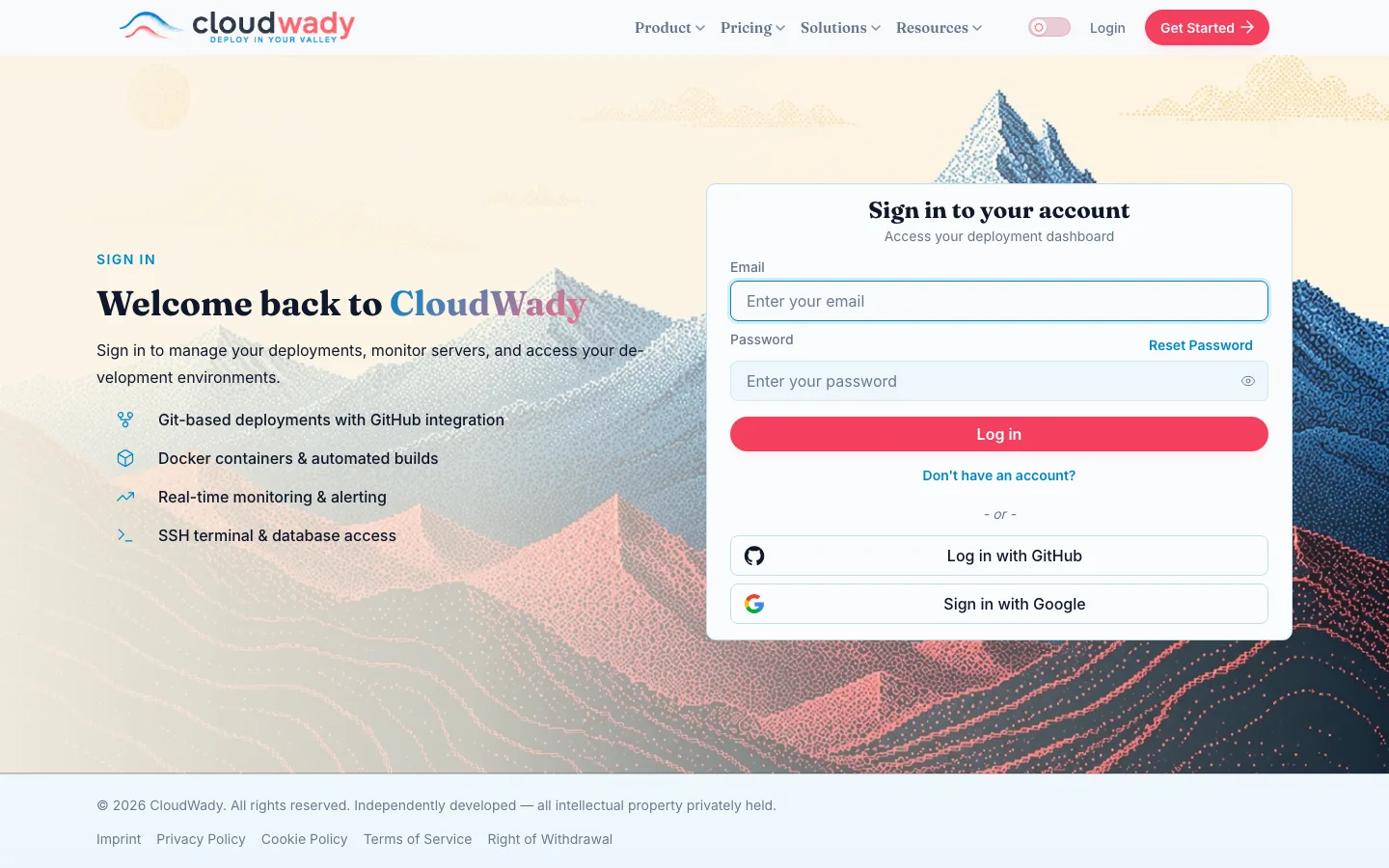
To create an account, click Get Started on the website. Enter your full name, your email address and a password, then click Create Account — or click Sign up with GitHub or Sign in with Google to use one of those accounts. Disposable email addresses are refused.
To log in, click Login on the website. Enter your email and password and click Log in, or use Log in with GitHub or Sign in with Google if that is how you signed up. If you forgot your password, click Reset Password and follow the link we email you. After you log in, you land on the dashboard.
Accept the terms
The first time you open the dashboard, the Terms and Conditions open in a window you can't skip. Scroll to the end, tick I have read and agree to the Terms and Conditions, and click Accept and Continue. When we publish a new version of the terms, the window comes back once so you can accept it.
Your namespace
Everything you create lives in a namespace: your organisation's own workspace, with its projects, servers, team and billing. Nobody outside your namespace sees what is in it.
Start in the sandbox
A new account starts in the Sandbox, a shared namespace with example projects you can look around in. To deploy your own apps, create your own namespace:
- On the Overview screen, click Create your workspace.
- Fill in Create Your Namespace: your organisation's name, VAT or tax ID, address, contact email and phone.
- Click Create Namespace. You become its administrator.
We review new namespaces. Until the review is done, your namespace carries a Pending badge, and you can't create a second one.
Switch between namespaces
The namespace you are working in is named in the top bar. If you belong to more than one, click it to open Switch Namespace:
- Click a namespace to work in it.
- Tick the boxes beside several namespaces to see them together.
- A namespace that has client namespaces below it shows a icon: click it to work in that namespace and all of its clients at once.
- The Sandbox and Pending badges tell you which one is the shared sandbox and which ones are still in review.
A tour of the dashboard
The dashboard has a sidebar on the left, a top bar, and the screen you are on in the middle. It opens on the Overview.
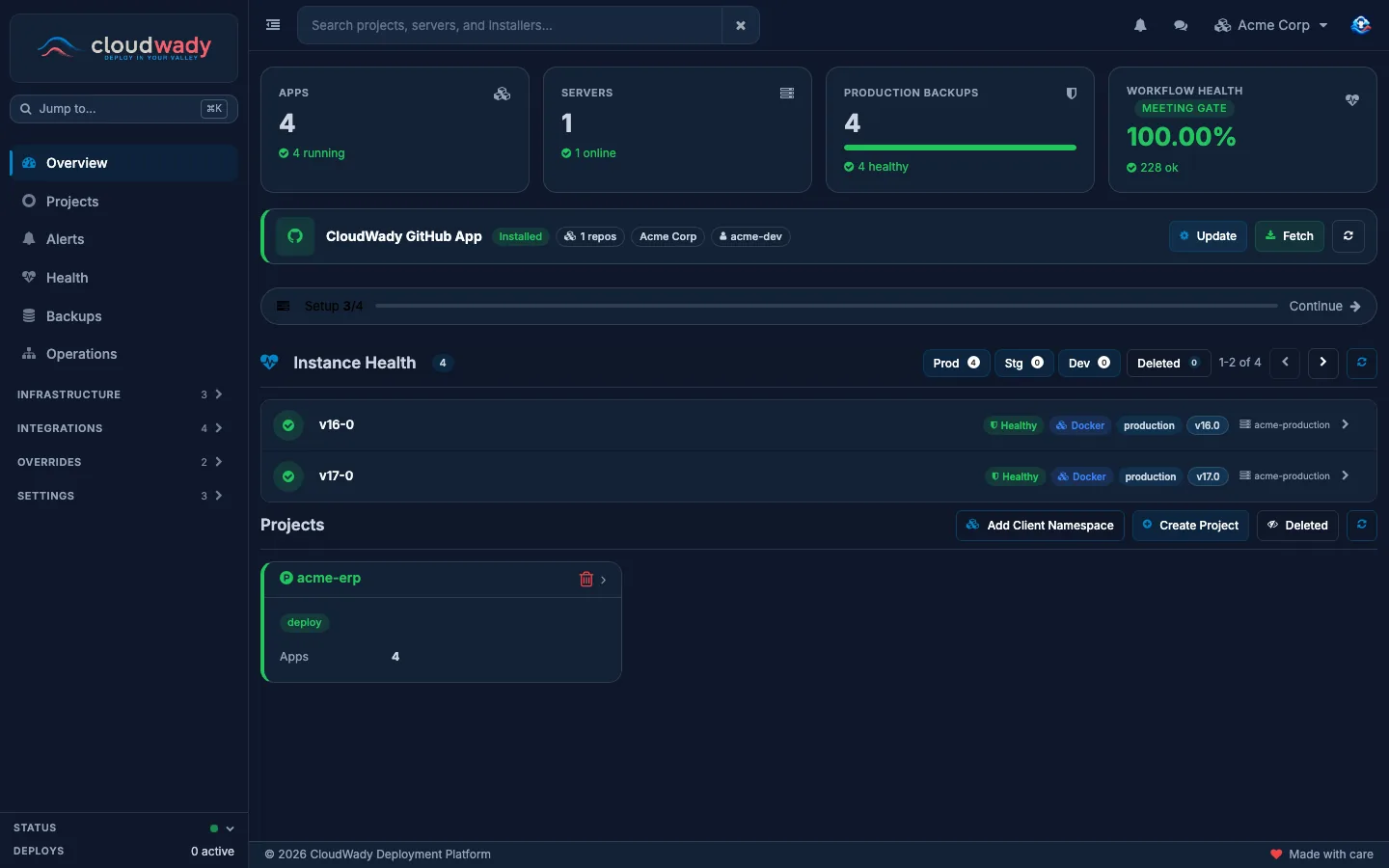
- The sidebar — every part of the platform you can open.
- The top bar — search, notifications, your namespace and your user menu.
- The tiles — apps, servers, production backups and workflow health at a glance.
- Instance Health and Projects — your running apps and your projects.
The sidebar
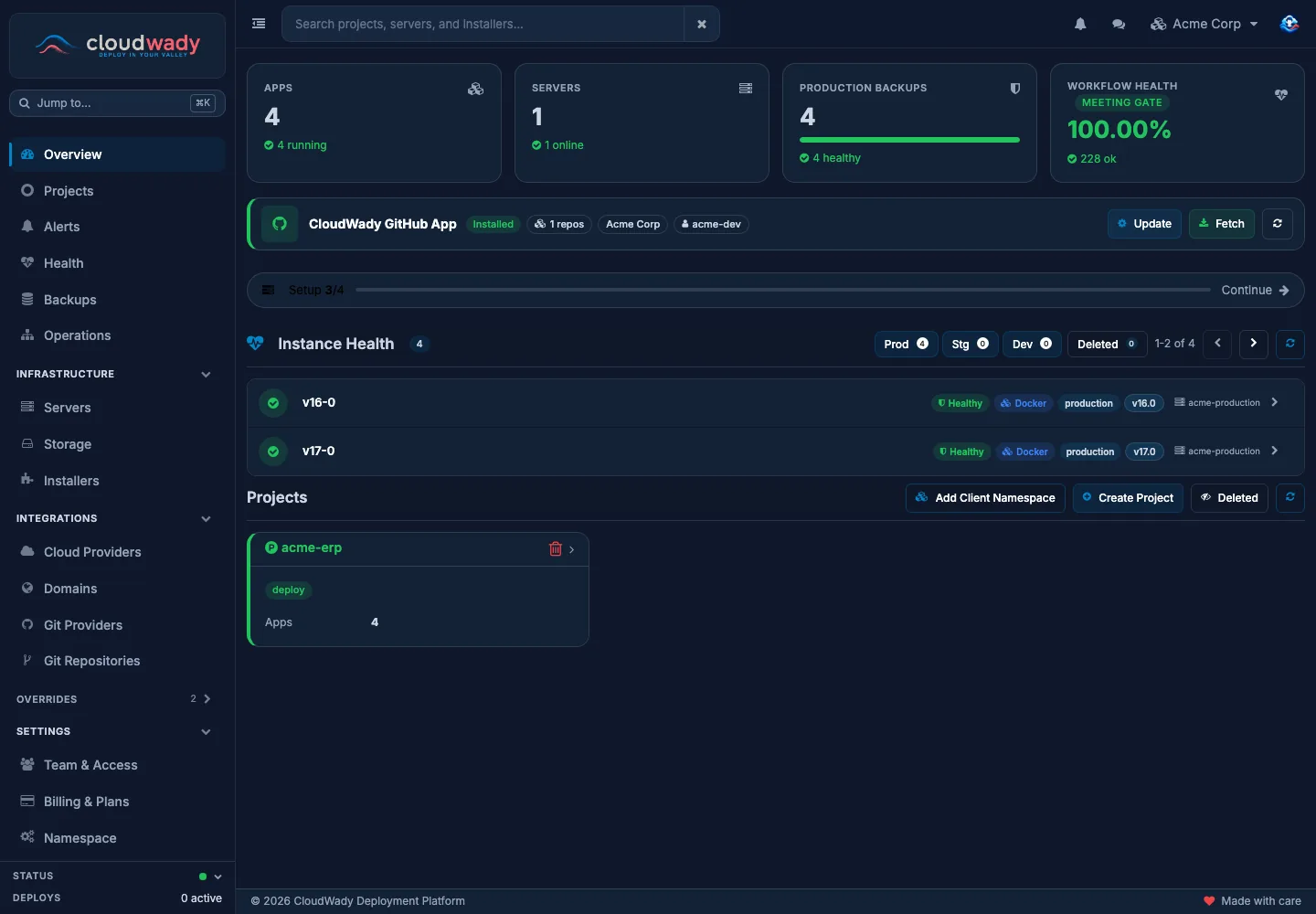
What you see depends on your role. The sections below Operations open and close with a click.
| Section | What is there | Who sees it |
|---|---|---|
| Overview | The summary screen described below. | Everyone |
| Projects | Your projects, and the button to create one. | Everyone |
| Alerts | What fired, your alert rules, maintenance windows and delivery. | Everyone, on a paid plan |
| Health | Tabs: Matrix (how your runs went), Instances, Backups, URLs & SSL, Server Cleanup, Core Addons. | Everyone |
| Backups | Every backup of every app in one list. | Everyone, on a paid plan |
| Operations | Tabs: Workflows, Runners, Queues, Reconciliation — the history of everything that ran. | Everyone |
| Infrastructure | Servers, Storage (backup storages), Installers (services on your servers). | Maintainer and above |
| Integrations | Cloud Providers, Domains (with White Label), Git Providers, Git Repositories. | Maintainer and above |
| Overrides | Your own versions of the platform's templates and playbooks. | Maintainer and above, with White Label |
| Settings | Team & Access (Admin), Billing & Plans, Namespace. | Maintainer and above |
At the bottom of the sidebar, Status shows how many deploys are running right now.
The top bar
- Search — finds projects, servers and installers. On a project, it searches that project.
- Notifications — what happened recently that concerns you.
- Messages — your conversations.
- Your namespace — the one you are working in; on a project, the project too.
- Your picture — the user menu.
Jump anywhere with Ctrl K
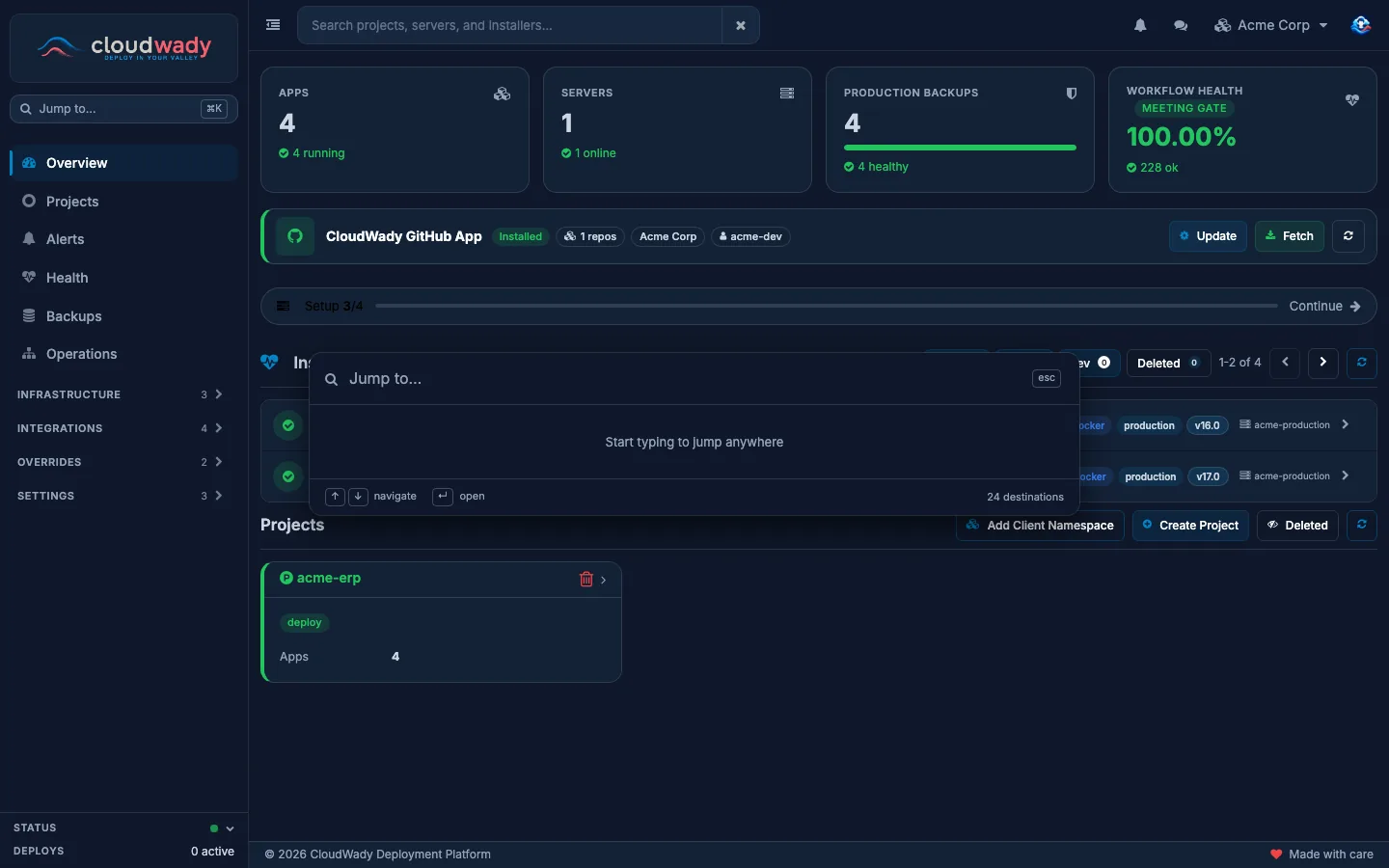
Press Ctrl K (⌘ K on a Mac), or click Jump to… at the top of the sidebar. Type part of a screen's name — "backups", "team", "servers" — then use ↑ ↓ to choose and ↵ to open it. In the docs, the same keys search the docs instead.
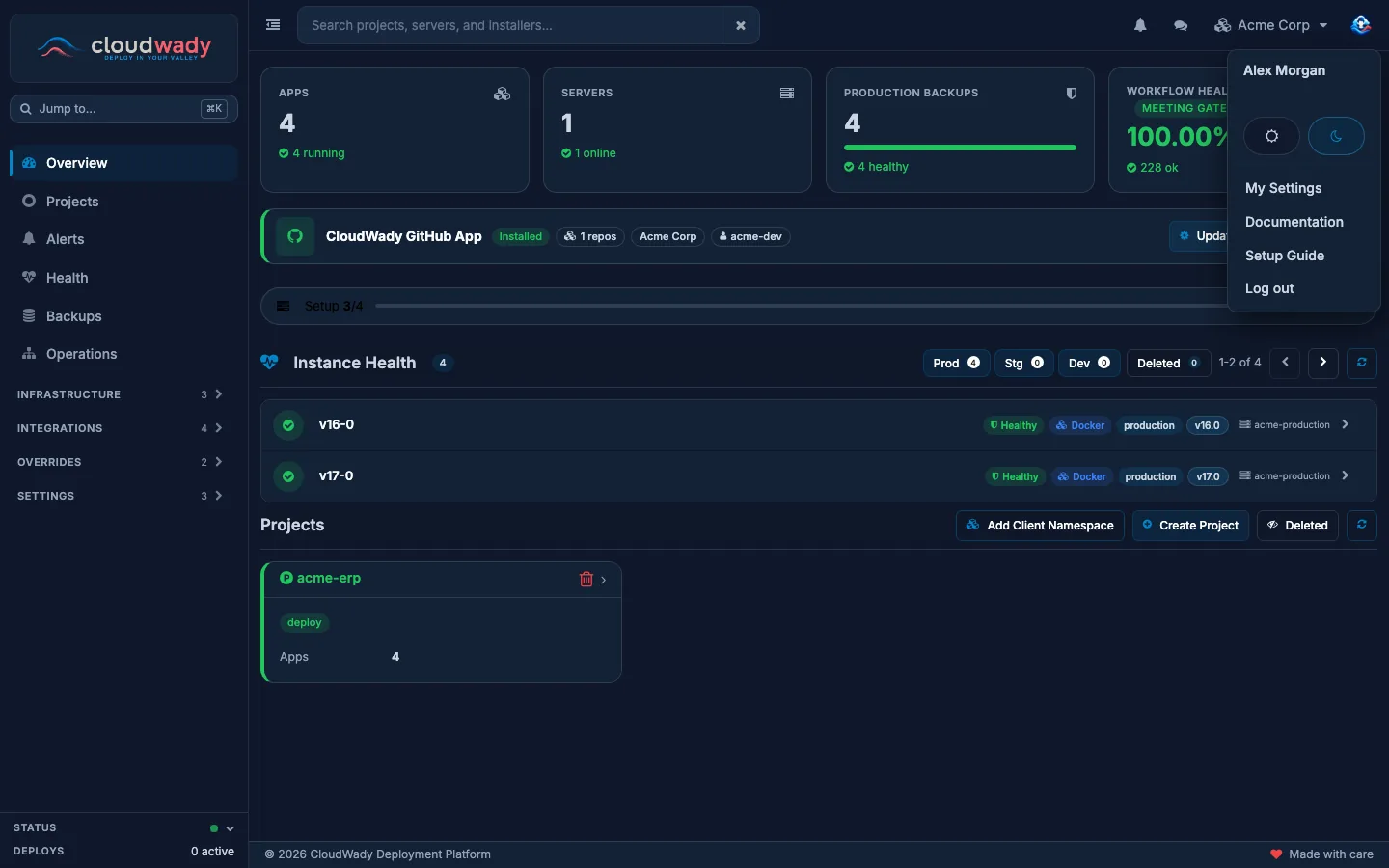
Your user menu
Click your picture at the top right. The menu shows your name, a light / dark theme switch, and:
- My Settings — your own profile and access (below).
- Documentation — these docs, inside the dashboard.
- Setup Guide — the checklist that gets your first project running.
- Log out.
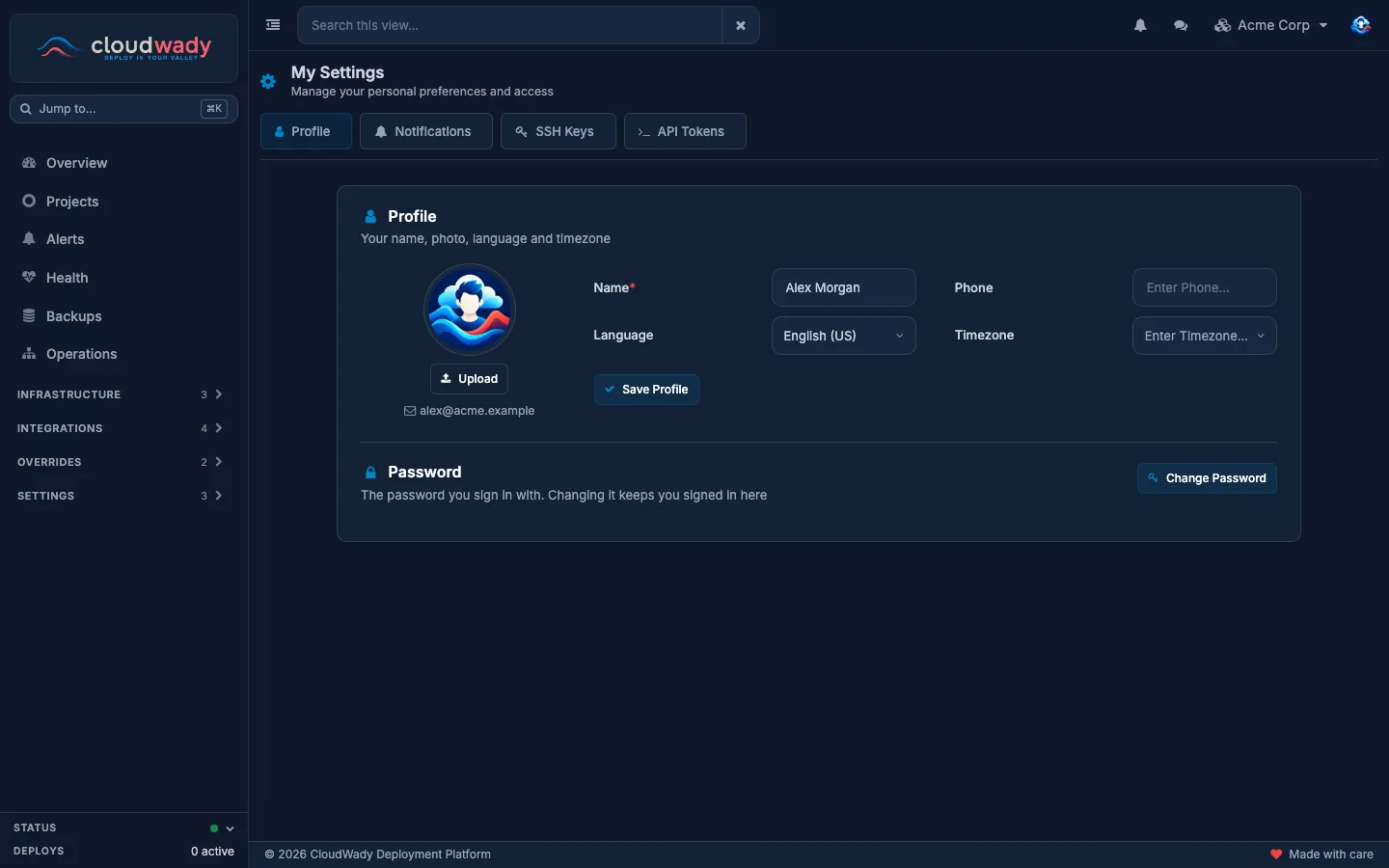
My Settings
| Tab | What you do there |
|---|---|
| Profile | Your name, photo, phone, language and timezone. Change Password changes the password you log in with. |
| Notifications | Which alerts reach you: your Notification scope (All, Mine or Manual) and the Minimum severity. You can also turn single alerts off. |
| SSH Keys | The public keys that let you open a terminal on your servers. |
| API Tokens | Tokens for the API, the cw command line and AI assistants. See API, CLI & AI assistants. |
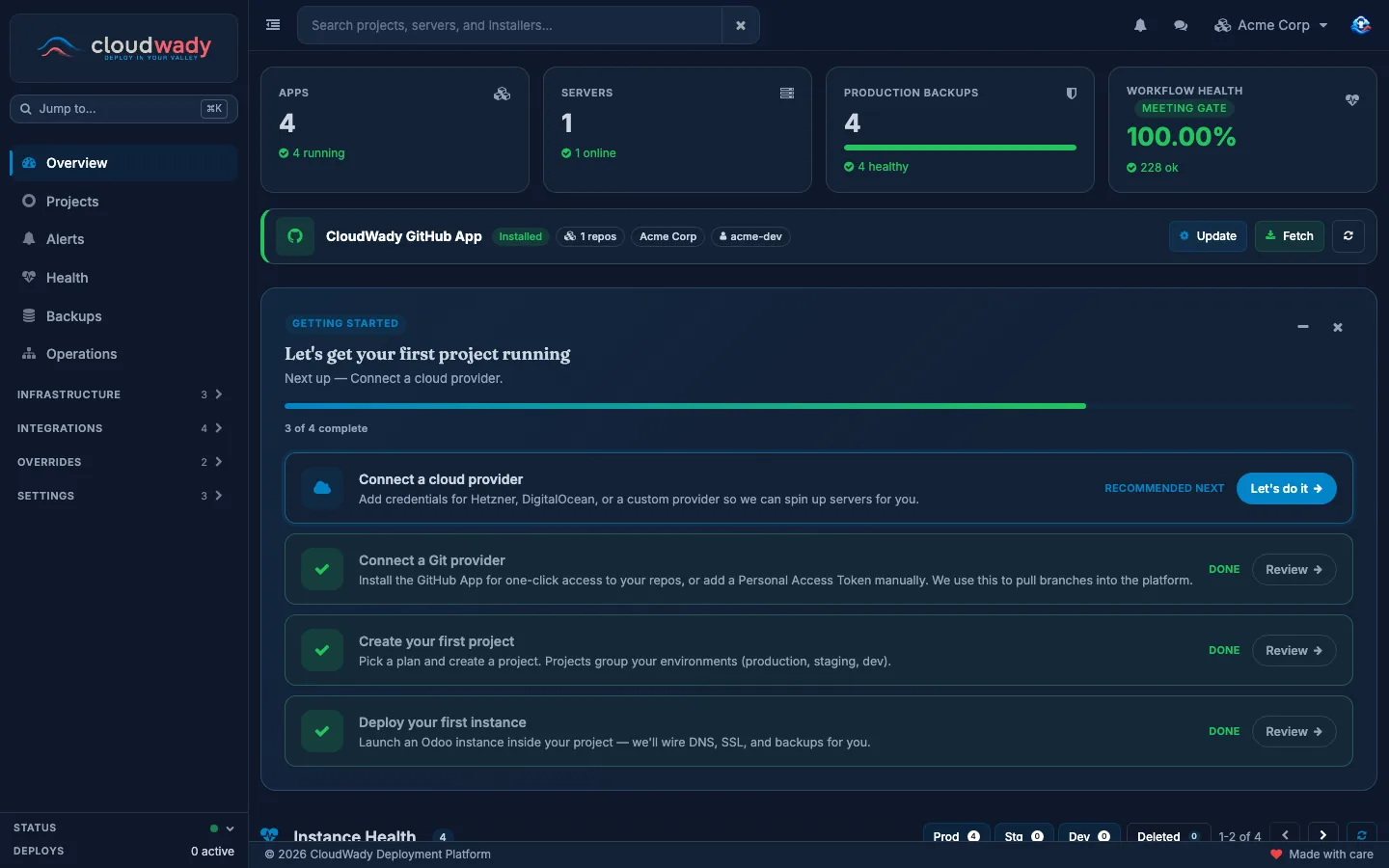
The Overview screen
The Overview tells you, in one screen, whether everything is fine and what needs you.
Needs attention
At the top, Needs attention lists what to look at now — for example production apps whose backups failed. Click an item to open the list behind it. When nothing needs you, it isn't shown.
The four tiles
| Tile | What it shows |
|---|---|
| Apps | How many apps you have, and how many are running. Click it to open your projects. |
| Servers | How many servers you have, and how many are online. |
| Production backups | Your production apps, split by how recent their last good backup is. Click it to open Health → Backups. |
| Workflow Health | The share of your runs that succeeded over the last 30 days. The badge says whether it meets our target (Meeting gate) or not (Below gate). |
Below the tiles
- CloudWady GitHub App — when the GitHub App is connected: the repositories it reaches and the GitHub account. Update and Fetch refresh what CloudWady knows about them.
- Setup — your progress through the Setup Guide. Click Continue to open it.
- Instance Health — every app with its status, environment, version and server. Use Prod, Stg and Dev to choose which environments to show (any combination), and Deleted to include deleted apps. Click an app to open it.
- Projects — your projects. Create Project starts a new one (Admin). Add Client Namespace is for agencies with White Label. Deleted shows deleted projects.
The Setup Guide
The Setup Guide is a short checklist on the Overview that takes you from a new account to a running app. While you are in the sandbox it has one step: Create your workspace. In your own namespace it has four:
- Connect a cloud provider — add your Hetzner or DigitalOcean credentials, or a custom provider, so we can create servers for you.
- Connect a Git provider — install the GitHub App, or add a personal access token, so we can pull your branches.
- Create your first project — pick a plan and create a project.
- Deploy your first instance — launch an Odoo app in your project. We set up its address, certificate and backups.
Click Let's do it on a step to open the screen where you do it; a finished step shows Done and a Review button. You can fold the guide away or close it. To bring it back, open your user menu and click Setup Guide.
On a phone
The dashboard works on a phone. The sidebar opens from the menu button at the top left. On each screen, the title, its buttons and the refresh button share one row; filters scroll sideways; tables turn into cards you scroll through. In the docs, Topics opens the list of pages.
Where to go next
- Projects & environments — create your first project.
- Deployments & rollback — build, update and roll back an app.
- Backups & restore — protect your data.
- Permissions & access — invite your team.
- Billing & pricing — plans, seats and add-ons.
Was this page helpful?
Your answer helps us prioritize documentation improvements.
Thanks — your feedback helps us improve.
Type to search titles and text.
↑↓ to move ↵ to open Esc to close